Upgrading to a new hard drive, replacing a failing disk, or moving your system to faster storage doesn’t have to mean reinstalling Windows and starting from scratch. With the right HDD cloning software, you can copy everything from one drive to another — including the operating system, installed programs, system settings, and personal files — and have your computer running again in exactly the same state, just on new hardware.
Key Features to Look for in HDD Cloning Software
While many tools claim to clone hard drives, only the best combine reliability, speed, and user-friendly design. Here are the most important features to consider when selecting HDD cloning software:
🍀 Disk Clone and Partition Clone Support
A versatile cloning tool should offer both disk-level cloning and partition-level cloning.
- Disk clone copies the entire drive (all partitions, system files, and data) to a new drive, making it ideal for full migrations.
- Partition clone lets you copy a specific section of the drive, which can be useful for specialized backups or moving only part of a disk.
🍀 Bootable Clone and System Migration
If you need to replace your system drive, the software must create a bootable clone. This allows your computer to start up from the new drive without reinstalling the operating system or applications.
🍀 Intelligent Cloning Options
Good cloning software should support intelligent cloning, which copies only used data rather than every sector on the drive. This makes the process faster and more efficient, especially when migrating to a smaller SSD from a larger hard drive.
🍀 Sector-by-Sector Cloning
While intelligent cloning is efficient, there are situations where you need a sector-by-sector clone — an exact bit-for-bit copy of the drive. This is essential for forensic work, recovering data from corrupted drives, or preserving the exact layout of a system.
🍀 SSD Optimization and Alignment
When cloning to an SSD, performance matters. Advanced cloning tools provide SSD alignment to ensure partitions are properly aligned on the new drive.
🍀 User-Friendly Interface and Clear Instructions
Not everyone using HDD cloning software is a tech expert. A clean, intuitive interface with clear prompts ensures you can complete the cloning process without confusion.
When evaluating HDD cloning software, AOMEI Cloner stands out as a reliable and user-friendly option that strikes a great balance between advanced features and accessibility. It offers all the features mentioned above to meet different clone scenarios.
How to Clone an HDD in Windows 11/10/8/7 Step by Step
Use AOMEI Cloner for a straightforward hard drive duplication process. Learn how to clone hard drive to SSD in detail below:
Step 1. Connect the new drive to your computer (via SATA, USB adapter, or enclosure). Back up any important data on the target drive, as the cloning process will erase it.
Step 2. Open AOMEI Cloner on your computer. On the main interface, select Clone from the menu. Then choose Disk Clone.
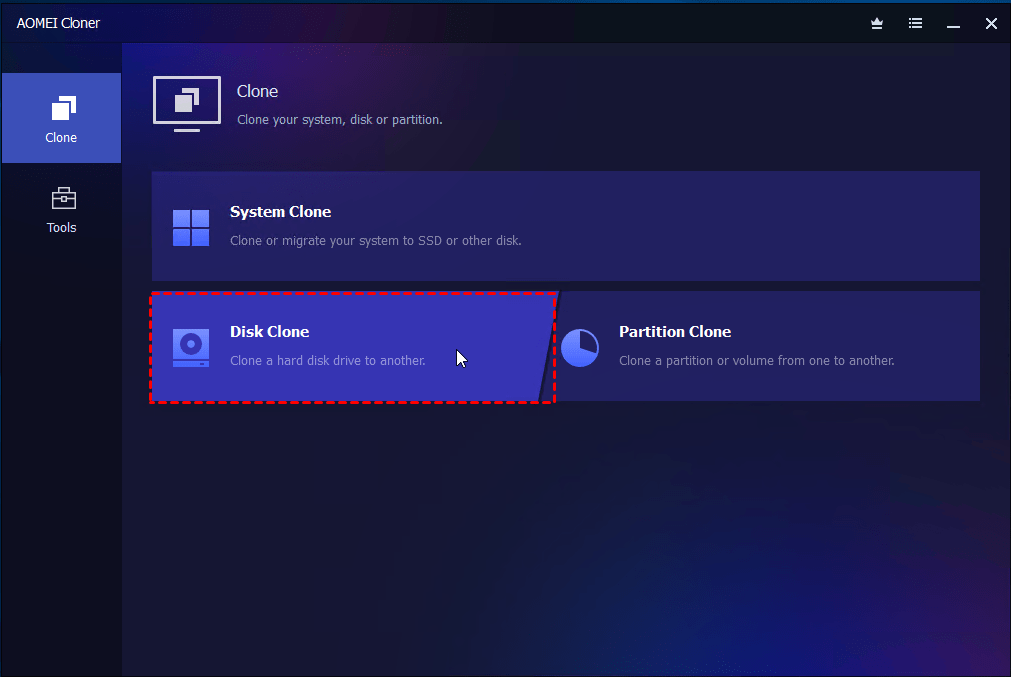
Step 3. Select the source disk (your current HDD) and the destination disk (the new SSD) respectively.
💡 Note: AOMEI Cloner will notify you that all data on the destination disk will be overwritten. Confirm to continue.
Step 4. Check SSD Alignment to improve the destination SSD performance. After reviewing your selections, click Start Clone to begin. The time required will depend on the amount of data and the speed of your drives.
Boot from the Cloned Drive
If you cloned a system drive, the final step is making sure your computer starts from the new drive.
Option 1: Replace the Old Drive with the Cloned SSD
Shut down your computer, remove the old HDD, and install the cloned SSD in its place. When you power the system back on, Windows will usually boot from the SSD automatically.
Option 2: Change the Boot Order in BIOS/UEFI
Restart your PC, enter BIOS/UEFI, and set the cloned SSD as the first boot device. Save the changes and reboot to start Windows from the SSD.
Final Words
HDD cloning software provides a fast and reliable way to move your entire system, applications, and data to a new drive without reinstalling Windows. With AOMEI Cloner, the process becomes straightforward, even for non-technical users. It offers intelligent cloning, bootable system migration, and SSD optimization, making it easier to upgrade storage. Try it out by yourself!
FAQ on Easy HDD Cloning Software
What is HDD cloning software?
HDD cloning software enables you to replicate the entire content of a hard drive, including operating systems, settings, files, and applications, onto a new drive. This process ensures a seamless transition to new storage without needing to reinstall everything from scratch, saving time and retaining system configurations.
How does HDD cloning benefit entrepreneurs?
For entrepreneurs, efficiency is critical. HDD cloning helps maintain productivity by swiftly migrating data to upgraded storage or new devices, minimizing downtime. This is especially valuable for startups relying on uninterrupted operations and secure data handling.
Can HDD cloning be used for SSDs?
Yes! Most HDD cloning software also supports SSDs. Premium tools incorporate SSD-specific optimizations, like alignment features, which enhance performance and prolong the lifespan of the SSD. This ensures a smooth upgrade to faster, modern storage solutions.
What sections of a disk can be cloned?
HDD cloning software allows both full disk cloning and partition cloning. Full disk cloning replicates the entire drive, whereas partition cloning targets specific sections, ideal for selective backups or partial system migrations.
What features should I look for in HDD cloning software?
Look for features like intelligent cloning, bootable drive creation, SSD optimization, and an intuitive interface. These ensure reliability, speed, and compatibility, which are critical whether migrating large data volumes or launching a startup.
How do I ensure my cloned drive is bootable?
To ensure the cloned drive is bootable, opt for software offering a "bootable clone" feature. Adjusting your BIOS/UEFI boot sequence to prioritize the cloned drive or physically replacing the old drive ensures the system boots seamlessly from the new one.
How can HDD cloning software save startup costs?
HDD cloning software allows startups to avoid investing in expensive IT solutions for new system setups. By preserving existing configurations during hardware upgrades, startups save resources and reduce risk, aiding in their path to scalable growth.
Can I clone a hard drive with existing errors?
Sector-by-sector cloning is ideal for drives with errors, as it creates a bit-for-bit replica. However, it's recommended to resolve errors beforehand for optimized performance and secure data transfer.
How does intelligent cloning work?
Intelligent cloning copies only the used data sectors of a drive, making the process faster and more efficient, especially when transitioning to smaller storage devices. It’s a time-saver for entrepreneurs upgrading to high-speed SSDs for business.
Are there any resources to help optimize startup processes using tech?
Yes! Check out our guide on TOP 10 MUST-HAVE TOOLS for Female Entrepreneurs. This article dives into essential tech tools that streamline workflows, boost productivity, and empower entrepreneurial journeys, complementing your use of HDD cloning software.
About the Author
Violetta Bonenkamp, also known as MeanCEO, is an experienced startup founder with an impressive educational background including an MBA and four other higher education degrees. She has over 20 years of work experience across multiple countries, including 5 years as a solopreneur and serial entrepreneur. Throughout her startup experience she has applied for multiple startup grants at the EU level, in the Netherlands and Malta, and her startups received quite a few of those. She’s been living, studying and working in many countries around the globe and her extensive multicultural experience has influenced her immensely.