
TL;DR: AutoCAD security in 2026 comes down to two jobs.
First, harden AutoCAD itself so a drawing cannot bring malicious code with it: set SECURELOAD to 1 or 2, keep TRUSTEDPATHS to a few read-only folders, leave LEGACYCODESEARCH at 0 and patch every seat. Second, protect the DWG file itself, because AutoCAD can no longer do it for you: password protection for drawings was removed in AutoCAD 2016. Use encryption, permissions, PDF or DWF copies for review, access control you can revoke, and dated proof of authorship. The 12-step checklist below covers both.
AutoCAD security checklist: how to protect DWG files from malicious code and unauthorized access
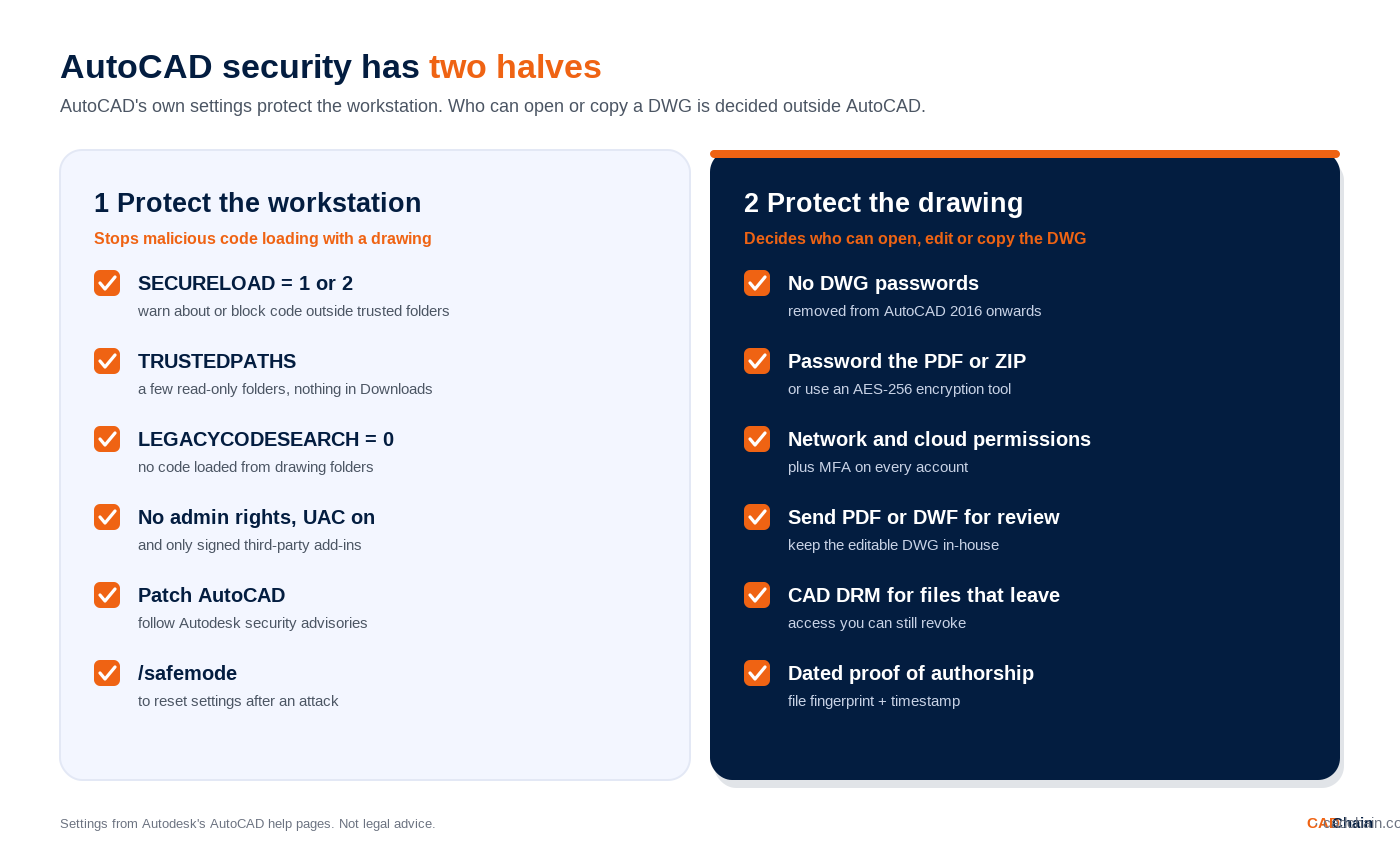
AutoCAD security and DWG file security are often treated as one topic, but they are two different problems. AutoCAD's own security settings protect the workstation: they decide which code is allowed to load when someone opens a drawing. They do nothing to stop a supplier, a former employee or a stolen laptop from opening and copying the DWG itself. In 2026 the drawing format was also an attack route in its own right: see how malicious DXF and DWG files can exploit Autodesk parsing flaws. On 17 November 2026, Autodesk fixed 16 more flaws of this kind in AutoCAD 2027.1, as our article on the AutoCAD vulnerability advisory ADSK-SA-2026-0021 explains.
This guide is written for engineers, CAD managers and founders who share drawings with clients and manufacturers. It lists the settings Autodesk documents, the gaps they leave, and what to put in those gaps, in the order you should do it.
"Engineers and designers today cannot afford to overlook DWG file security. Any lapse can lead to severe IP losses, legal battles, and reputational damage." - Violetta Bonenkamp, CEO & Co-Founder, CADChain
Need robust CAD data security?
Learn how CADChain’s BORIS plugin registers a fingerprint and timestamp of your critical CAD files on the blockchain as tamper-evident, dated proof of authorship.
👉 Explore BORIS Now
Why AutoCAD security has two halves
Think of every DWG as two assets: the drawing (your design, your IP) and the session that opens it (a computer that runs code). Attackers go after both. Malicious AutoLISP, VBA, script or add-in files ride along with drawings and run when AutoCAD loads them; leaked or forwarded DWGs give away the design itself. AutoCAD ships controls for the first problem only.
AutoCAD has no DWG passwords any more
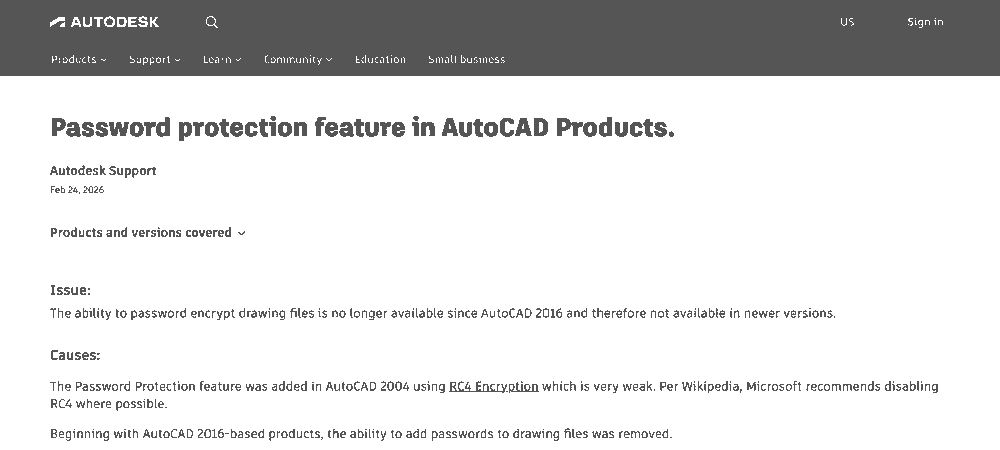
Many older guides still tell you to open Options, go to Open and Save and set a drawing password. That advice is out of date. Autodesk's support article states that the ability to password encrypt drawing files has not been available since AutoCAD 2016: the feature used RC4 encryption, which is weak. When AutoCAD 2016 or newer opens an old password-protected drawing, it asks for the password, and the password is removed once the file is saved. Autodesk instead points to five alternatives: a password on a PDF export, a password-protected ZIP made with a secure external utility, a third-party encryption tool using 256-bit AES or equivalent, network permissions, and cloud provider permissions (Autodesk Support: Password protection feature in AutoCAD Products).
If you came here for a step-by-step way to lock a single drawing, our guide on how to password protect CAD files and lock AutoCAD drawings walks through the four methods that still work.
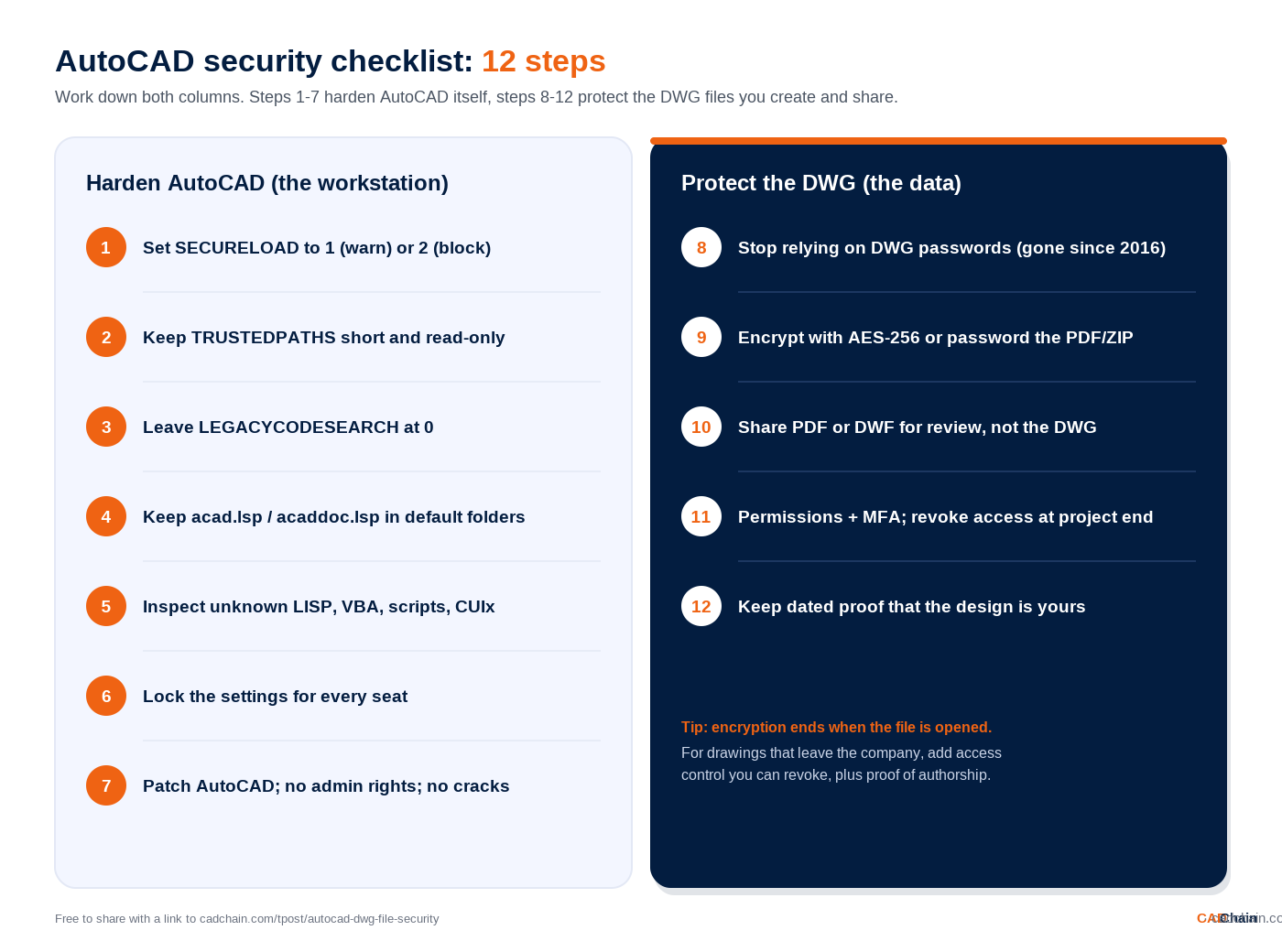
Part 1: harden AutoCAD (steps 1 to 7)
These steps keep untrusted code from running when a drawing opens. A CAD manager can set them once and lock them for every seat.
- Set SECURELOAD to 1 or 2. SECURELOAD decides whether AutoCAD loads executable files only from trusted locations. 0 loads from anywhere without a warning and is not recommended; 1 (the default) loads trusted files and warns about the rest; 2 loads trusted files only and ignores everything else. Autodesk's own labels are Off, Medium and High.
- Keep TRUSTEDPATHS short and read-only. List only the folders your approved add-ins and scripts really live in, and make those folders read-only for users. Never add Downloads, a desktop or a shared project folder. The Program Files folders are trusted by default.
- Leave LEGACYCODESEARCH at 0. This stops AutoCAD searching the drawing folder and the start-in folder for executable files, a classic way for a planted acad.lsp to load with a project.
- Keep acad.lsp and acaddoc.lsp in their default folders. Restricting where these startup files load from means a copy dropped next to a drawing is not picked up.
- Inspect unknown code before you run it. Open unfamiliar AutoLISP, VBA macros, script files, CUIx and PGP files in a text editor first. If a supplier sends tools along with drawings, treat them like any other software install.
- Lock the settings for every seat. The CAD Manager Control Utility has a Security tab where you set the security level, tick Lock Security Settings, and either apply it to the workstation or create a .reg file to deploy to other machines; locking makes SECURELOAD read-only for users (Autodesk Support: How to modify and lock the SECURELOAD variable).
- Patch, limit rights, avoid cracks. Install AutoCAD in the default location with User Account Control on, do not run it as an administrator, keep antivirus definitions current, install only digitally signed third-party ARX, DBX, CRX and DLL add-ins, and never use cracked copies. Check Autodesk's security bulletins and advisories in the Autodesk Trust Center and install the hotfixes it lists for your release.
If a drawing has already run something nasty: start AutoCAD with the /safemode startup switch. It disables executable code at startup so you can reset SECURELOAD and TRUSTEDPATHS, then restart normally. Most commands and the Express Tools do not work in safe mode, so use it only to clean up.
Part 2: protect the DWG file (steps 8 to 12)
Once a drawing leaves your vault, AutoCAD's settings no longer matter. These steps decide who can open, edit, forward or claim it.
- Stop relying on DWG passwords. Drawings saved in AutoCAD 2016 or later carry no password, and old ones lose theirs on the next save. Remove the Options password step from your internal procedures.
- Encrypt drawings that leave the building. Use a password-protected PDF for review copies, a ZIP made with a secure external utility, or a dedicated 256-bit AES encryption tool for the DWG. Our guide to CAD encryption at rest, in transit and in use explains where each method stops: once a recipient decrypts the file, encryption no longer protects it.
- Share a PDF or DWF for review, not the editable DWG. Most reviewers, clients and planners need to see and mark up a drawing, not change its geometry. Keep the source DWG in-house unless the recipient genuinely needs to model with it.
- Control access where the file lives. Protect folders with network permissions and cloud provider permissions, require multi-factor authentication on every account that can reach drawings, and revoke access the day a project or partnership ends. For drawings that must go to manufacturers, access control that travels with the file and can be withdrawn later is the next level: see how to roll out CAD DRM from assessment to enterprise deployment.
- Keep dated proof that the design is yours. If a drawing leaks, you need evidence of what you had and when. Registering a file fingerprint (hash) with a timestamp gives tamper-evident, dated proof without changing the file. CADChain's BORIS add-ins do this inside SOLIDWORKS and Autodesk Inventor; proof of this kind records ownership, it does not control who opens the file, so pair it with steps 9 to 11.
Which AutoCAD security setting does what
Common AutoCAD security mistakes
- Trusting an old drawing password. It disappears the first time the file is saved in AutoCAD 2016 or later.
- Setting SECURELOAD to 0 to silence warnings. The warning is the protection; add the right folder to TRUSTEDPATHS instead.
- Adding broad folders to TRUSTEDPATHS. A trusted Downloads or project folder turns every received file into trusted code.
- Running AutoCAD as an administrator. Anything malicious then runs with the same rights.
- Emailing editable DWGs by default. Send PDF or DWF review copies and keep the source in a permission-controlled location.
- Forgetting to revoke access. Folder shares and cloud links outlive the project unless someone removes them.
Keep your supply chain secured.
Discover advanced DRM solutions tailored to collaborative manufacturing workflows.
👉 Learn More
Conclusion: secure AutoCAD first, then the drawing
A secure AutoCAD setup takes an afternoon: SECURELOAD at 1 or 2, a short read-only TRUSTEDPATHS list, LEGACYCODESEARCH at 0, locked settings and current patches. Protecting the DWG file is the ongoing part, because AutoCAD stopped offering drawing passwords in 2016. Encrypt what leaves, share review copies instead of source files, control and revoke access, and keep dated proof of authorship.
For the wider picture beyond AutoCAD, read our complete guide to CAD file security or work through the CAD file security checklist for engineering teams.
AutoCAD security FAQ
Can I password protect a DWG file in AutoCAD?
Not in current versions. Autodesk removed the ability to add passwords to drawing files in AutoCAD 2016-based products because the feature used weak RC4 encryption. Autodesk recommends a password on a PDF export, a password-protected ZIP, a 256-bit AES encryption tool, or network and cloud permissions instead.
What happens to old password-protected DWG files?
AutoCAD 2016 and newer still ask for the password when opening them, but the password is removed once the file is saved. Older releases (2004 to 2015) keep it.
How do I lock an AutoCAD drawing from editing?
AutoCAD has no built-in edit lock for a whole drawing. The practical options are to send a PDF or DWF copy instead of the DWG, make the file or folder read-only through permissions, or share it from a cloud platform with view-only rights. Our guide on locking AutoCAD drawings compares the methods.
What does SECURELOAD do in AutoCAD?
It controls whether AutoCAD loads executable files such as AutoLISP and add-ins only from the trusted folders in TRUSTEDPATHS. 0 is off, 1 warns about files outside trusted folders (the default), and 2 blocks them.
Can a DWG file contain a virus?
Malicious code usually reaches AutoCAD as executable files that load with a drawing, such as AutoLISP, VBA, scripts or add-ins, which SECURELOAD and trusted folders are designed to block. Flaws in how CAD software reads DWG and DXF files have also been found and patched, which is why keeping AutoCAD updated matters.
How do I reset AutoCAD security settings after an attack?
Start AutoCAD with the /safemode startup switch, which disables executable code at startup, then set SECURELOAD and TRUSTEDPATHS back to safe values and restart normally.
Does encryption stop someone copying my drawing?
Only until the recipient decrypts it. After that, the file is unprotected, so pair encryption with access control you can revoke and with dated proof of authorship.
How do I share DWG files securely with suppliers?
Send the least you can (a PDF or DWF where possible), encrypt anything you send, share through permission-controlled platforms with MFA, revoke access at the end of the project, and keep a timestamped record of the versions you shared.