TL;DR: An AutoCAD xref (external reference) is a DWG file linked into your drawing instead of copied into it, so changes in the source file show up every time the host drawing opens or reloads. You attach one with XATTACH or the External References palette (type XREF), keep the default Relative path so a project folder can move as a whole, fix Not Found references with Select New Path or Find and Replace, and bind the xrefs only when you freeze a set for review or archive. Before a drawing leaves your company, decide which xrefs travel with it: eTransmit packages every attached reference by default.
Autodesk's AutoCAD 2027 help defines it in one line: "An xref is an external reference that's specifically a DWG file." Images, PDFs, DWF and DGN files also appear in the same palette, and Autodesk calls those underlays or attached images. This guide covers DWG xrefs, checked against the AutoCAD 2027 help on 25 November 2026.
Xrefs are the reason a 40-sheet building set stays consistent: the structural grid lives in one file and every sheet links to it. They are also the reason a "small" drawing you email a supplier can carry the whole site plan, the mechanical layout and a client's floor plan with it. Here is how to work with them, and how to keep control of what they expose.
What is an xref in AutoCAD, and why use one?
An xref is a live link from your drawing (the host) to another DWG file, displayed inside the host's model space without copying its geometry. Autodesk's help lists three practical effects:
- Small files. "Attached xrefs do not significantly increase the size of your current drawing."
- One source of truth. A DWG can be attached to many drawings at once; edit it once and every host shows the change when it opens or reloads.
- Separate names. The xref's layers, text styles and blocks stay separate from the host's and show with a prefix, such as STAIR|STEEL for layer STEEL from stair.dwg.
AutoCAD LT supports DWG xrefs too: the AutoCAD LT 2027 help has its own External References palette, attach dialog and missing-reference pages. LT lacks project search paths and the standalone Reference Manager.
How do I attach an xref in AutoCAD?
Open the External References palette, choose Attach DWG, pick the file, set the reference type and path type, then place it. The AutoCAD 2027 steps:
- Open the palette: type XREF (or EXTERNALREFERENCES), or go to Insert tab > Reference panel > External References, or View tab > Palettes panel.
- Click the Attach drop-down at the top left of the palette and choose Attach DWG (this runs XATTACH). You can select several DWG files at once.
- In the Attach External Reference dialog, choose Reference Type: Attachment or Overlay.
- Choose the Path type: Full path, Relative path or No path. Relative is the default.
- Set the insertion point, scale and rotation, or tick Specify On-screen. If both drawings carry geographic data, Locate using Geographic Data lines them up.
- Click OK and place the reference. A small Xref icon appears in the status bar.
You can also right-drag a DWG from DesignCenter into the drawing and choose Attach as Xref. To remove an xref, detach it, do not erase it: Autodesk notes that detaching also removes the layer definitions and other information the reference brought in.
What is the difference between attach and overlay?
An attached xref travels with the host when the host itself is attached somewhere else; an overlay stays behind. Autodesk's wording: "an overlaid xref is not included when the drawing is itself attached or overlaid as an xref to another drawing."
That one rule decides how nesting behaves. Say the architect's floor plan overlays the structural grid for reference. When the MEP engineer attaches the floor plan, they get the floor plan only, without a second copy of the grid. Autodesk describes overlays as "designed for data sharing in a network environment", and you can switch an existing reference at any time with right-click Xref Type > Attach / Overlay.
Watch for circular references: A attaches B, B attaches C, and C attaches A. AutoCAD warns you when you attach and breaks the loop for the session when you open the file.
Which xref path type should I use: full, relative or no path?
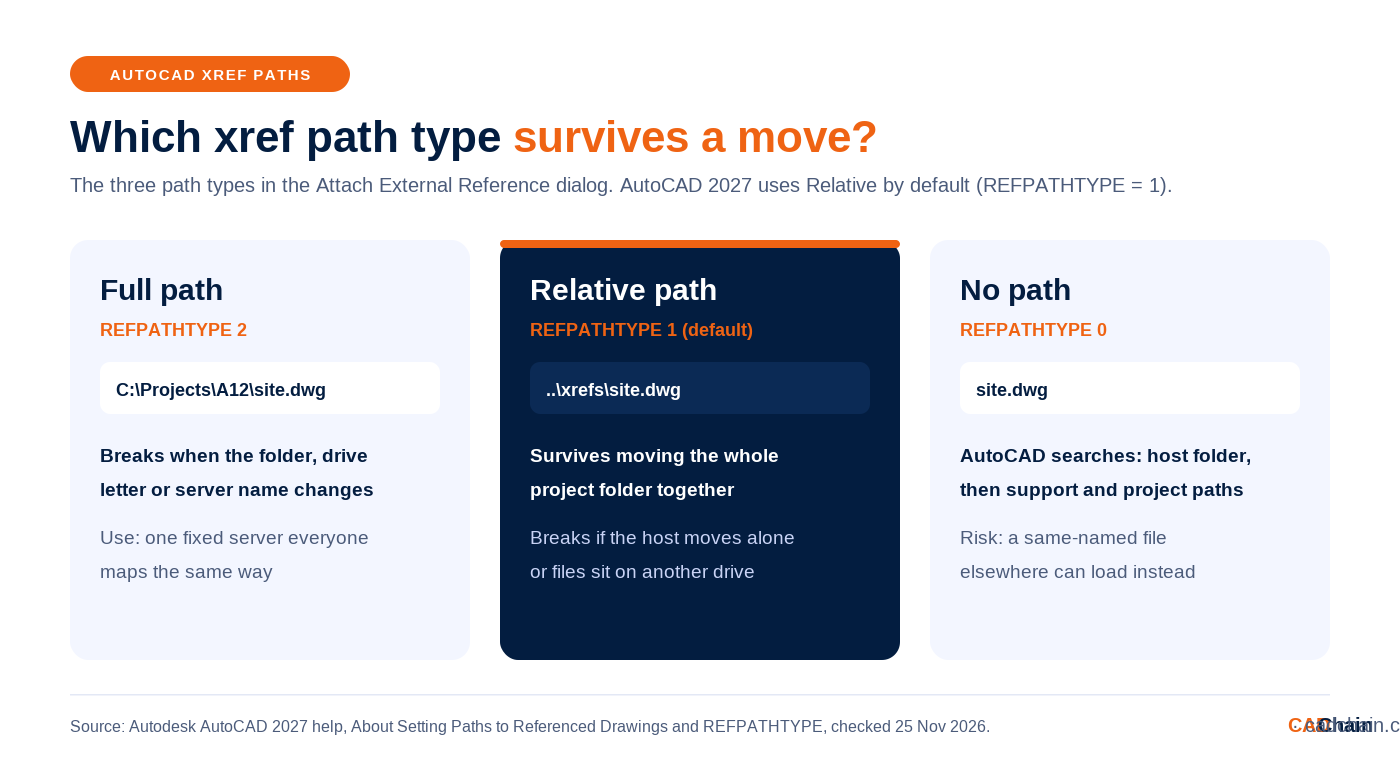
Use Relative path for project work, Full path only for files on one fixed server, and No path when drawings will move into an unknown folder structure. The default for new attachments is set by the REFPATHTYPE system variable: 0 = no path, 1 = relative (the initial value), 2 = full. Changing it does not touch xrefs that are already attached.
Two details from Autodesk's help save a lot of confusion:
- Relative paths are not available when the xref is on a different local drive or a network server from the host.
- For nested xrefs, "a relative path always references the location of its immediate host", not the drawing you have open.
How do I fix an xref that says Not Found?
Right-click the reference in the External References palette and choose Select New Path, then let AutoCAD apply the same folder to the other missing references. The palette shows a status for every reference: Loaded, Unloaded, Not Found, Unresolved, Orphaned, Unreferenced, Needs Reloading, plus Comparable and In Compare for xrefs changed on disk. An exclamation mark on the status-bar Xref icon tells you something is missing.
The fixes in AutoCAD 2027, from one file to a whole archive:
- One broken xref: right-click > Select New Path, pick the file, click Open. AutoCAD asks whether to apply the same path to other missing references.
- Several broken xrefs: switch on the Missing toggle, select the missing references and click Update Paths, then choose the new folder.
- A changed server or drive name: right-click > Find and Replace swaps one saved path for another across every reference that uses it.
- Many drawings at once: the standalone Reference Manager (Windows Start menu > Autodesk > AutoCAD) reports and edits paths across drawing sets. Autodesk warns that it "changes multiple paths at once, and you cannot undo your actions", so run it on a copy.
- Files on Forma Data Management: AutoCAD 2027's Connected References tries to locate renamed or moved xrefs automatically and offers a suggested path.
Why does an xref load from the wrong folder?
When the saved path fails, AutoCAD searches other folders and loads the first file with the right name. Autodesk's help lists the host drawing's folder, then the project search paths (PROJECTNAME and the Files tab in Options) and the support file search paths, then the Windows shortcut's Start In folder. Two Autodesk 2027 pages list the project and support paths in a different order, so treat the order as "host folder first, then the Options paths". Open the palette's details pane and compare Found In with Saved Path: if they differ, you are looking at a different file from the one you think.
How do I bind an xref, and what does $0$ mean?
Right-click a loaded DWG reference in the palette, choose Bind, then pick Bind or Insert. Binding makes the xref "a permanent part of the drawing and no longer an externally referenced file", in Autodesk's words. The two bind types handle names differently:
- BINDTYPE sets the default: 0 = Bind ($0$ names), 1 = Insert (merge).
- XBIND binds single named objects (one layer, block or text style) instead of the whole file. Binding a block brings every named object it uses.
- RENAME cleans up names afterwards: Autodesk's own example renames STAIR$0$STEEL to STEEL.
- To bind a nested xref, select its parent too. Xrefs that contain proxy objects cannot be bound.
Bind when the drawing must stop changing. Autodesk's archive advice: "To prevent unintentional updating of archived drawings by later changes to referenced drawings, bind the xrefs to the final drawing." Keep xrefs live while the project still moves.
Which xref settings should every team know?
Six system variables explain most surprises with xref layers, speed and editing. All values below come from the AutoCAD 2027 help:
For editing, XOPEN opens an xref in its own window, REFEDIT edits it in place inside the host, and XCLIP crops what part of an xref shows. XCOMPARE highlights what changed in an xref with revision clouds.
How do I share AutoCAD drawings with xrefs safely?
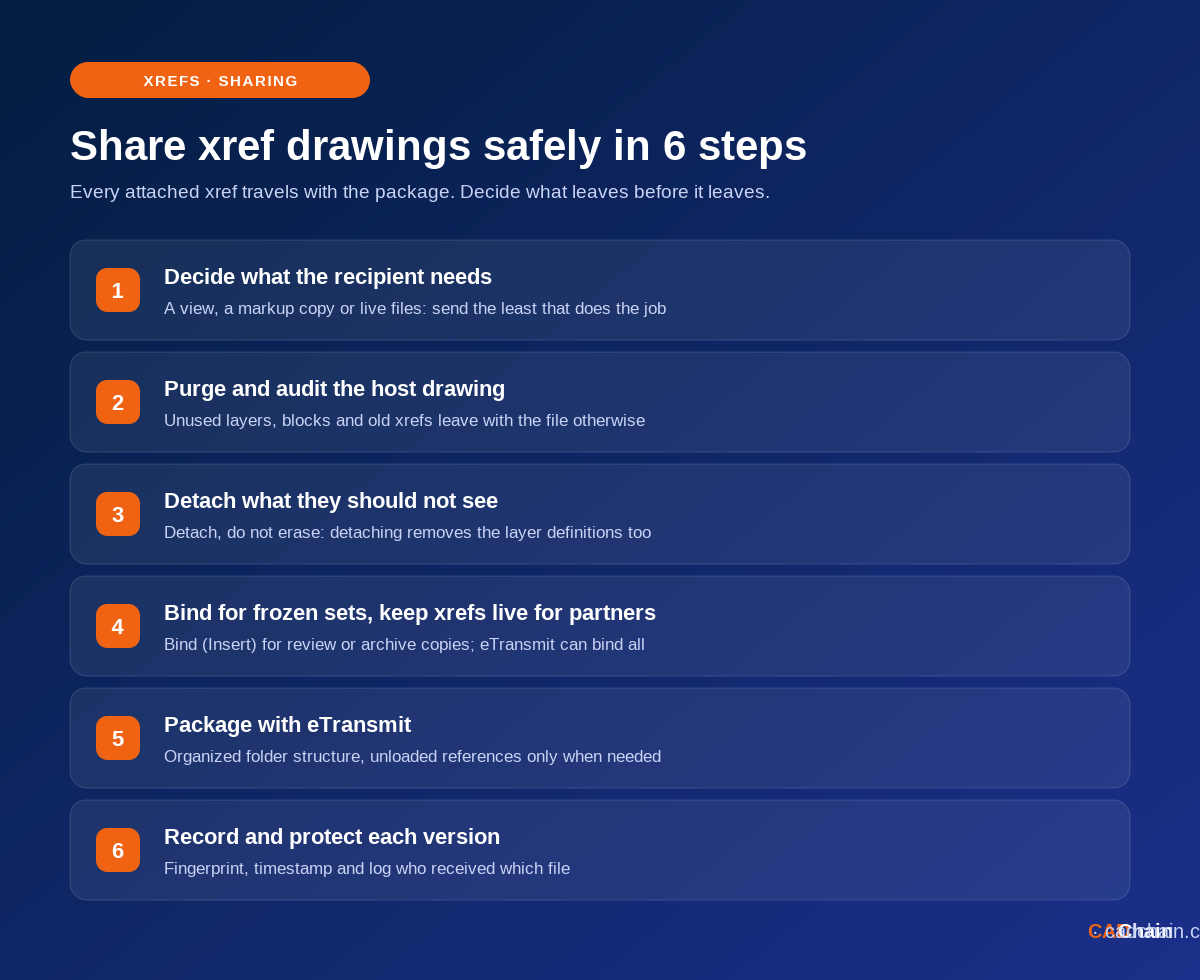
Treat every attached xref as part of what you send, then send the least that does the job. eTransmit (ETRANSMIT) packages a drawing with its dependent files, and xrefs and fonts go in automatically. AutoCAD 2027's SHARE command creates a link to a copy that "includes all external references and images"; for drawings outside Forma Data Management those links expire after 7 days. Shared Views were removed in AutoCAD 2027.
The eTransmit settings that decide what leaves, from Autodesk's Modify Transmittal Setup dialog:
- Package type: Folder or Zip.
- Path options: Use Organized Folder Structure (absolute paths inside the root become relative), Place All Files in One Folder, or Keep Files and Folders As Is.
- Bind External References, with Bind or Insert: the recipient gets one self-contained drawing instead of your folder of sources.
- Purge Drawings removes unused named objects silently.
- Include Unloaded File References adds xrefs you unloaded. Leave it off unless the recipient needs them.
What a CAD manager checks before anything leaves:
- List the references. Open the palette in Tree view and read every name. Client floor plans and supplier parts hide two levels down.
- Detach what the recipient should not get. Unloading hides a reference on screen; detaching removes it.
- Bind or not. Bind (Insert) for review copies and tenders, so later edits cannot change what they saw. Keep live xrefs only for partners who work on the same project files.
- Purge and audit, then open the package on a clean machine to see exactly what the recipient sees.
- Record the version you sent. Note the file, date and recipient, or better, let the file carry its own record.
That last step is where CADChain comes in. A bound xref is a full copy of your geometry, and once it is out, it is out. CADChain's DRM plugin travels with the CAD file, controls who can open it and logs every interaction, so a drawing set you share keeps an owner and a history. Read our CAD file security guide, how CAD encryption protects files at rest, in transit and in use, and how information rights management works for engineering files.
What are the most common AutoCAD xref mistakes?
Most xref trouble comes from moving files, erasing instead of detaching and sending more than you meant. The list from real projects:
- Full paths on a laptop. The project works at the office and breaks at home because the drive letter differs.
- Moving one host drawing out of the project folder. Its relative paths now point nowhere.
- Erasing an xref instead of detaching it. The definition and its layers stay in the file, and it still travels with eTransmit.
- Binding live project drawings. The bound copy stops updating while the team keeps changing the source.
- Cleaning up $0$ layers by hand instead of choosing Insert or BINDTYPE 1 before binding.
- Sharing with "Include Unloaded File References" on and sending files you meant to keep.
- Opening DWG attachments from unknown senders. Autodesk patched 16 flaws in AutoCAD 2027.1, including malicious DWG data links; see our AutoCAD vulnerability summary and how a DWG or DXF can hack a workstation.
Design files leak through ordinary channels far more than through hackers. Our cases on screen captures, former employees, cloud storage and the Joby trade secret verdict over drawings and 3D models show how. For DWG-compatible tools outside the US, see our European alternatives to AutoCAD, and for the wider picture, the 8-layer IP protection playbook.
FAQ
What is an xref in AutoCAD?
An xref (external reference) is a DWG file linked into another drawing and displayed in its model space without copying the geometry. Autodesk's help puts it as "an external reference that's specifically a DWG file". Changes to the source show up when the host opens or reloads.
How do I open the xref manager in AutoCAD?
Type XREF or EXTERNALREFERENCES to open the External References palette, or go to Insert tab > Reference panel > External References. The palette lists every xref, image and underlay with its status, size, type and saved path.
What is the difference between attach and overlay in AutoCAD?
An attached xref is carried along when the host drawing is attached to another drawing. An overlay is ignored in that case, so it does not nest. Overlays suit background references shared on a network.
Why does my xref say Not Found?
The file is no longer at its saved path and AutoCAD did not find it on any search path. Right-click it in the External References palette and use Select New Path, or turn on the Missing toggle and use Update Paths for several files.
Should I use a relative or full path for xrefs?
Use a relative path, which is AutoCAD's default, when the whole project folder moves together. Use a full path only when every user maps the same server path. Relative paths do not work across different drives or servers.
How do I bind an xref in AutoCAD?
In the External References palette, right-click a loaded DWG reference, choose Bind and pick Bind or Insert. Bind keeps names such as FLOOR1$0$WALL; Insert merges them into the host's own layers such as WALL.
How do I get rid of $0$ in layer names after binding?
Use the RENAME command on each layer, or bind with the Insert option (BINDTYPE set to 1) in the first place so the names merge with your drawing's own layers.
Does eTransmit include xrefs?
Yes. eTransmit packages xrefs and fonts automatically, and its transmittal setup can bind all DWG xrefs with Bind or Insert, purge the drawings and choose how folder paths are rebuilt.
Can AutoCAD LT use xrefs?
Yes. AutoCAD LT 2027 attaches DWG xrefs and has the External References palette. It lacks project search paths (PROJECTNAME) and the standalone Reference Manager, and it cannot attach point clouds or coordination models.